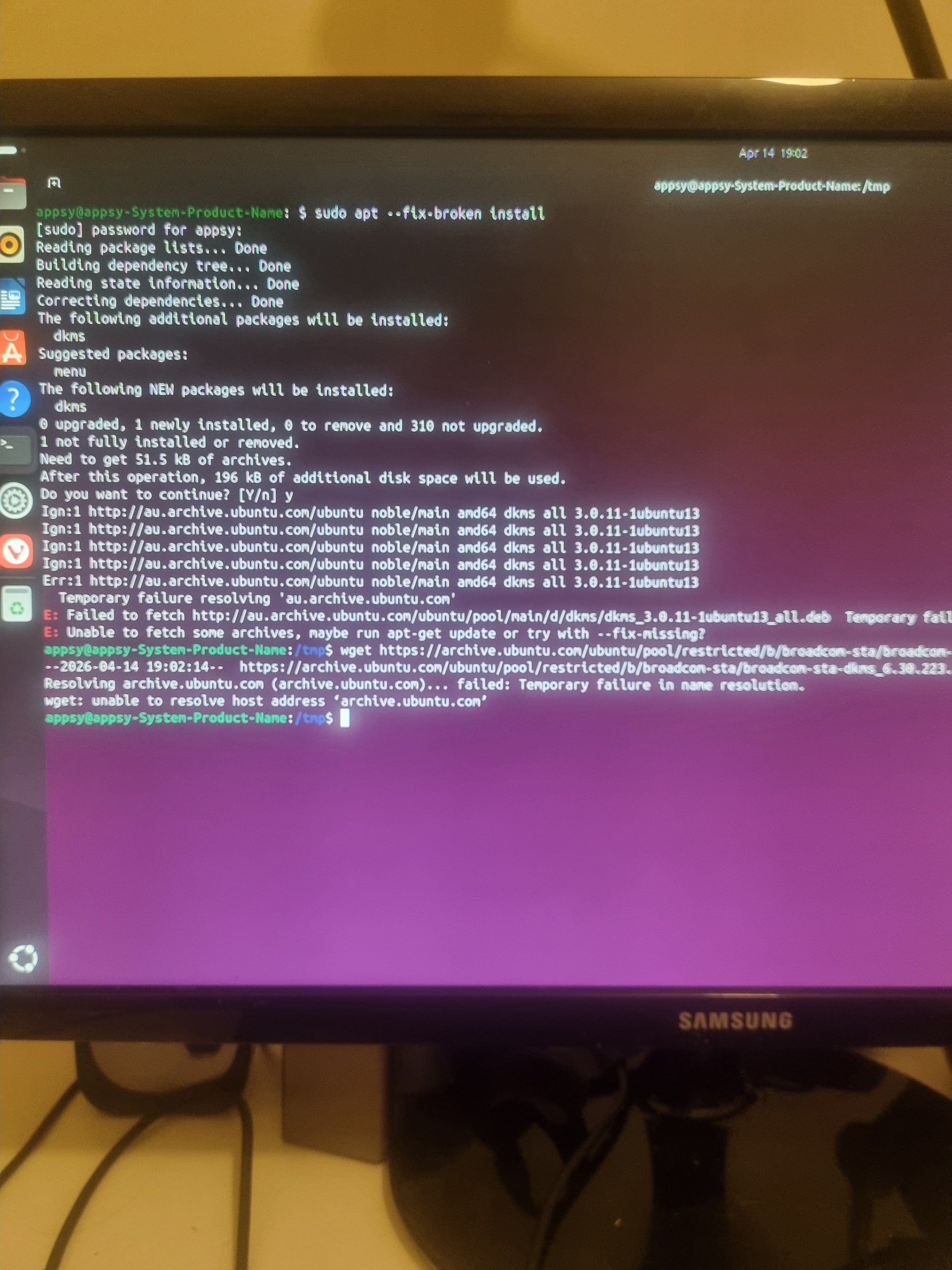
Stll no luck!
1 Like
Are you sure you are connected to the internet?
I tested that URL and it’s online. So it’s your connection. Because it’s failing see the error messages as the clue. I was on mobile earlier so didn’t notice until now.
2 Likes
I feel somewhat foolish because I disconnected the wired connection and returned the machine to its usual location. This of course explains why I cant get those commands to succeed!!! Iwill be away from the machine for tonight and part of tomorrow so, I will revisit the issue tomorrow. Thanks for alerting me to my mistake!
3 Likes
It happens. Ok great, at least you know you can bypass that now. See how it goes. We will be here.
2 Likes
Okay, I have wired connection and ran your command and Step #2 from Marcel Stefano and had no errors but, still don’t have wifi.
2 Likes
On a laptop with a Broadcom WIFI card I had to roll the kernel back twice when a new kernel came out, and then forward again after another new kernel came out that worked again.
2 Likes
I was quite disappointed to see that Jakarta2 has been suspended, particulary since his solution was able to fix my wifi problem! I have re-run his previous commeands with no success and it have included the results. Any suggestions please??? appsy@appsy-System-Product-Name:~$ sudo apt purge bcmwl-kernel-source broadcom
sta-dkms
[sudo] password for appsy:
Reading package lists… Done
Building dependency tree… Done
Reading state information… Done
E: Unable to locate package broadcom
sta-dkms: command not found
appsy@appsy-System-Product-Name:~$ sudo rm -f /var/crash/broadcom-sta-dkms*.crash
appsy@appsy-System-Product-Name:~$ sudo apt autoremove
Reading package lists… Done
Building dependency tree… Done
Reading state information… Done
0 upgraded, 0 newly installed, 0 to remove and 6 not upgraded.
appsy@appsy-System-Product-Name:~$ cd /tmp
appsy@appsy-System-Product-Name:/tmp$ wget https://archive.ubuntu.com/ubuntu/pool/restricted/b/broadcom-sta/broadcom-sta-dkms_6.30.223.271-23ubuntu1.2_all.deb
–2026-04-16 10:27:39-- https://archive.ubuntu.com/ubuntu/pool/restricted/b/broadcom-sta/broadcom-sta-dkms_6.30.223.271-23ubuntu1.2_all.deb
Resolving archive.ubuntu.com (archive.ubuntu.com)… 91.189.92.22, 185.125.190.82, 91.189.91.81, …
Connecting to archive.ubuntu.com (archive.ubuntu.com)|91.189.92.22|:443… connected.
HTTP request sent, awaiting response… 200 OK
Length: 2482710 (2.4M) [application/vnd.debian.binary-package]
Saving to: ‘broadcom-sta-dkms_6.30.223.271-23ubuntu1.2_all.deb’
broadcom-sta-dkms_6.30.2 100%[=================================>] 2.37M 848KB/s in 2.9s
2026-04-16 10:27:43 (848 KB/s) - ‘broadcom-sta-dkms_6.30.223.271-23ubuntu1.2_all.deb’ saved [2482710/2482710]
appsy@appsy-System-Product-Name:/tmp$ sudo dpkg -i broadcom-sta-dkms_6.30.223.271-23ubuntu1.2_all.deb
(Reading database … 175442 files and directories currently installed.)
Preparing to unpack broadcom-sta-dkms_6.30.223.271-23ubuntu1.2_all.deb …
Module broadcom-sta-6.30.223.271 for kernel 6.17.0-20-generic (x86_64).
Before uninstall, this module version was ACTIVE on this kernel.
wl.ko.zst:
- Uninstallation
- Deleting from: /lib/modules/6.17.0-20-generic/updates/dkms/
- Original module
- No original module was found for this module on this kernel.
- Use the dkms install command to reinstall any previous module version.
depmod…
Deleting module broadcom-sta-6.30.223.271 completely from the DKMS tree.
Unpacking broadcom-sta-dkms (6.30.223.271-23ubuntu1.2) over (6.30.223.271-23ubuntu1.2) …
Setting up broadcom-sta-dkms (6.30.223.271-23ubuntu1.2) …
Loading new broadcom-sta-6.30.223.271 DKMS files…
Building for 6.17.0-20-generic
Building initial module for 6.17.0-20-generic
Done.
wl.ko.zst:
Running module version sanity check.
- Original module
- No original module exists within this kernel
- Installation
- Installing to /lib/modules/6.17.0-20-generic/updates/dkms/
depmod…
appsy@appsy-System-Product-Name:/tmp$
- Installing to /lib/modules/6.17.0-20-generic/updates/dkms/
Also, Jakarta2 suggested turning off Safe Boot but, when I enter the BIOS utility and heed to the area where Safe Boot is listed, there is no way to turn it off!
1 Like
Hey @appsy Moderation decisions are not for public discussion and there’s usually more to them than what’s visible from the outside. Let’s keep this thread focused on your wifi issue.
If the previous fix stopped working after a kernel update, that’s a separate problem worth troubleshooting fresh, maybe worth starting from what’s currently loaded with lsmod | grep wl and dmesg output after a boot attempt.
1 Like
Ran those commands and got this after boot:
appsy@appsy-System-Product-Name:~$ dmesg
dmesg: read kernel buffer failed: Operation not permitted
1 Like
This means that you need to add sudo to the beginning of the command.
Also, follow this guide for pasting the output in a clear readable format.
For the dmesg command, it will be a lot of output, so try something like this:
sudo dmesg | grep -i -E 'wl|broadcom|bcm|firmware'
1 Like
So, if someone posts a command always insert sudo first
2 Likes
Ok so you don’t need it for most day-to-day stuff that happens inside your home directory, that’s your space and you own it.
Where sudo comes in is when you’re reaching outside home into system areas owned by root, either to modify things or with dmesg just to read the output.
It’s basically a checkpoint that makes you pause and think about what you’re doing, because those commands can and will affect the whole system, sometimes not easily reversible.
Honestly if you don’t mind occasionally breaking things and starting over, running into these situations is one of the better ways to learn Linux. You just need the patience for it, because pasting commands you’re not fully sure about or understand will often go sideways while you are unaware, and that’s part of the process.
Over time you start recognizing commands, when sudo is needed and when it isn’t. Especially if you read the outputs and look up commands in docs, I used Arch’s Wiki to learn a lot about commands back in the day but you are on Debian-based.
The important thing is to try understand commands as much as possible before pasting, it helps to avoid human error.
Check out:
- explainshell.com - you can paste command directly into it.
- And: cheat.sh
- tldr.sh - this one I have installed command line. Just remember to update the db before searching.
Also see:
3 Likes
I simply asked a question and posted the results of the answer and if that doesn’t fit the scheme of things I’m not sure where that leaves me!
2 Likes
I want to embrace the joys of liniix but,without a wifi connection it it is exceptionally difficult! It might be insignificant but there it is!
2 Likes
Totally understandable @appsy, no wifi or internet access is a significant issue, especially when you’re trying to enjoy the process of learning more about Linux.
4 Likes
Hi, @appsy 
So, are you using Ubuntu 24.04 or are you using some other version of Ubuntu? If you don’t know which version you have installed, you may write the following command:
cat /etc/lsb-release
In my case, as I’m using Ubuntu 24.04 (in my case, “Ubuntu MATE 24.04”), when I run that command, it returns the following result:
DISTRIB_ID=Ubuntu
DISTRIB_RELEASE=24.04
DISTRIB_CODENAME=noble
DISTRIB_DESCRIPTION="Ubuntu 24.04.4 LTS"
Assuming that you are using Ubuntu 24.04, you may try to do the following (as I’m using Ubuntu MATE 24.04 and not “normal” Ubuntu 24.04 there may be some small differences from what you see):
1 - Please, open the “Software & Updates” program
2 - When the “Software & Updates” window opens, click on the “Developer Options” tab. You should then see this:
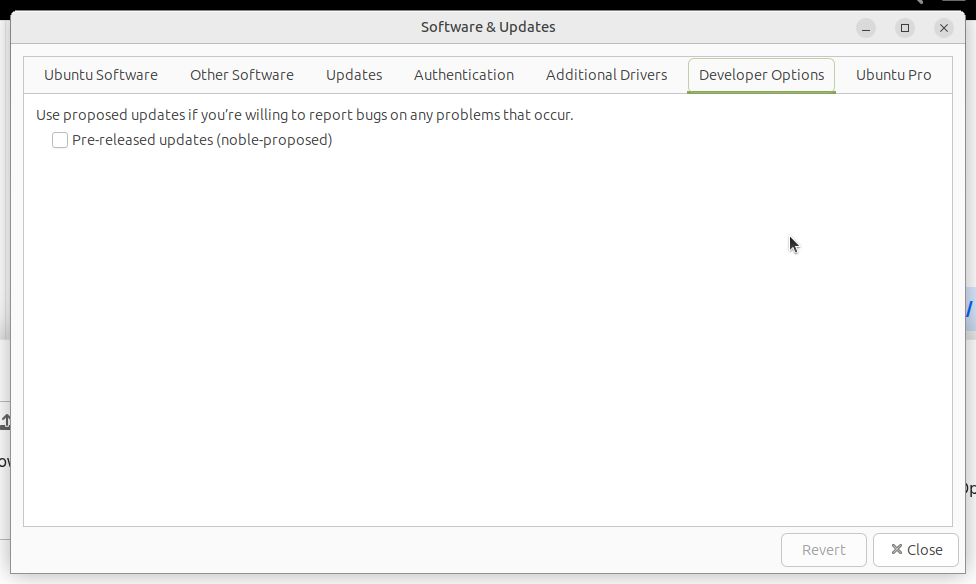
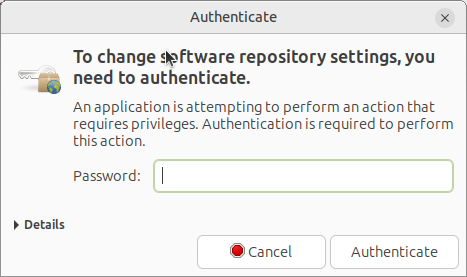
3 - Click / check on the “Pre-released updates (noble-proposed)” checkbox in that window. Wen you click the checkbox, you may get the following window to enter your password to confirm the action. If that’s the case, please enter your password in the text box, and click on the “Authenticate” button:
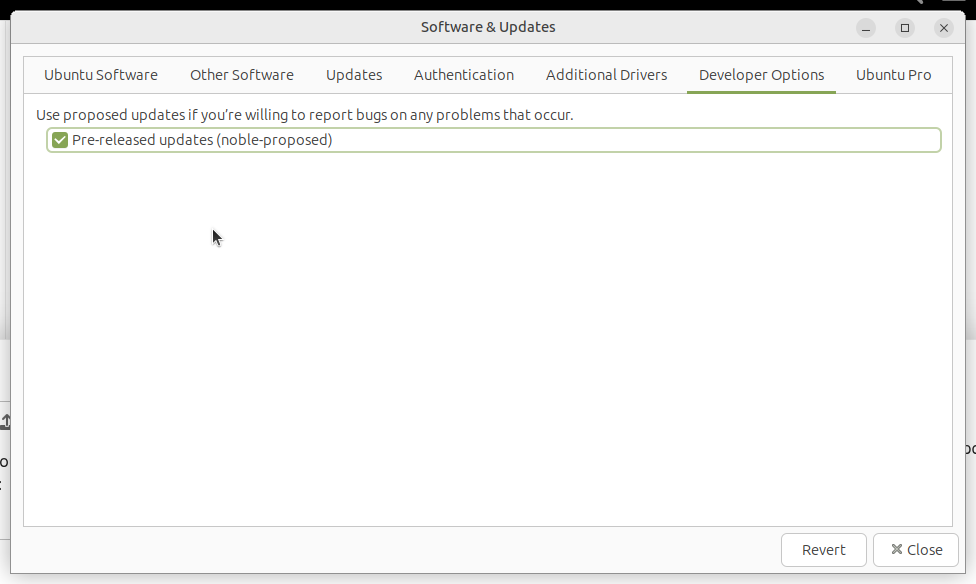
4 - The “Software & Updates” window should now show the "Pre-released updates (noble-proposed)" checkbox as checked:
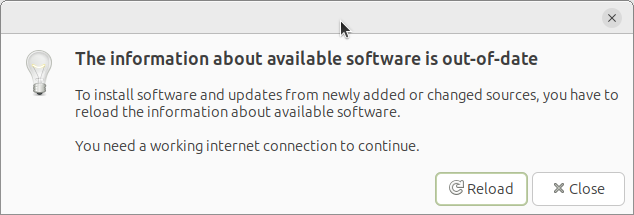
5 - Click the “Close” button in the lower right corner of that window. You will probably get the following window. If you do, please click the “Reload” button:
6 - Now, please open a Terminal window, and run the following command and reply in this same discussion topic (where we are now) with the corresponding output:
sudo apt install broadcom-sta-dkms/noble-proposed
7 - After doing that , you may want to return to the “Software & Updates” window, go again to the “Developer Options” and click again the “Pre-released updates (noble-proposed)” checkbox to uncheck it / clear it.
I hope this helps
4 Likes
Output: appsy@appsy-System-Product-Name:~$ dmesg
dmesg: read kernel buffer failed: Operation not permitted
appsy@appsy-System-Product-Name:~$ cat /etc/lsb-release
DISTRIB_ID=Ubuntu
DISTRIB_RELEASE=24.04
DISTRIB_CODENAME=noble
DISTRIB_DESCRIPTION=“Ubuntu 24.04.4 LTS”
appsy@appsy-System-Product-Name:~$ sudo apt install broadcom-sta-dkms/noble-proposed
[sudo] password for appsy:
Reading package lists… Done
Building dependency tree… Done
Reading state information… Done
broadcom-sta-dkms is already the newest version (6.30.223.271-23ubuntu1.2).
Selected version ‘6.30.223.271-23ubuntu1.2’ (Ubuntu:24.04/noble-proposed [all]) for ‘broadcom-sta-dkms’
You might want to run ‘apt --fix-broken install’ to correct these.
The following packages have unmet dependencies:
broadcom-sta-dkms : Depends: dkms (>= 2.1.0.0) but it is not going to be installed
E: Unmet dependencies. Try ‘apt --fix-broken install’ with no packages (or specify a solution).
1 Like
I ran ‘sudo apt --fix-broken install’ and got this: appsy@appsy-System-Product-Name:~$ sudo apt --fix-broken install
Reading package lists… Done
Building dependency tree… Done
Reading state information… Done
Correcting dependencies… Done
The following additional packages will be installed:
dkms
Suggested packages:
menu
The following NEW packages will be installed:
dkms
0 upgraded, 1 newly installed, 0 to remove and 12 not upgraded.
1 not fully installed or removed.
Need to get 51.5 kB of archives.
After this operation, 196 kB of additional disk space will be used.
Do you want to continue? [Y/n] y
Get:1 http://au.archive.ubuntu.com/ubuntu noble/main amd64 dkms all 3.0.11-1ubuntu13 [51.5 kB]
Fetched 51.5 kB in 0s (219 kB/s)
Selecting previously unselected package dkms.
(Reading database … 175427 files and directories currently installed.)
Preparing to unpack …/dkms_3.0.11-1ubuntu13_all.deb …
Unpacking dkms (3.0.11-1ubuntu13) …
Setting up dkms (3.0.11-1ubuntu13) …
Setting up broadcom-sta-dkms (6.30.223.271-23ubuntu1.2) …
Loading new broadcom-sta-6.30.223.271 DKMS files…
Building for 6.17.0-20-generic
Building initial module for 6.17.0-20-generic
Done.
wl.ko.zst:
Running module version sanity check.
- Original module
- No original module exists within this kernel
- Installation
- Installing to /lib/modules/6.17.0-20-generic/updates/dkms/
depmod…
Processing triggers for man-db (2.12.0-4build2) …
- Installing to /lib/modules/6.17.0-20-generic/updates/dkms/
1 Like
Hi, @appsy
You did very well in running those commands, including sudo apt --fix-broken install
By the output that you’ve shown of that command, it seems that it may have fixed the problems with the software package “dkms” and I see that it also set up the “6.30.223.271-23ubuntu1.2” version of the “broadcom-sta-dkms” package, which is the version that was suggested when you ran sudo apt install broadcom-sta-dkms/noble-proposed and got the information that “broadcom-sta-dkms is already the newest version (6.30.223.271-23ubuntu1.2).”
So, you may want now to try to set up your “Wi-Fi”. I’m guessing that you already how to do that. If not, you may consult the Official documentation page about that topic (“Connect to a wireless network”) for Ubuntu 24.04:
https://help.ubuntu.com/lts/ubuntu-help/net-wireless-connect.html.en
If everything is working, you may want to return to the “Software & Updates ” window, go again to the “Developer Options ” and click again the “Pre-released updates (noble-proposed) ” checkbox to uncheck it / clear it (if you haven’t already done so).
I hope this helps
3 Likes
Thanks @ricmarques but, unfortunately, I still cannot see the wireless connection option, only the wired connection!
1 Like