appsy@appsys-ubuntu:~$ sudo apt install dkms
[sudo] password for appsy:
Reading package lists… Done
Building dependency tree… Done
Reading state information… Done
dkms is already the newest version (3.0.11-1ubuntu13).
dkms set to manually installed.
0 to upgrade, 0 to newly install, 0 to remove and 27 not to upgrade.
appsy@appsys-ubuntu:~$ sudo dkms install broadcom-sta/6.30.223.271
Sign command: /usr/bin/kmodsign
Signing key: /var/lib/shim-signed/mok/MOK.priv
Public certificate (MOK): /var/lib/shim-signed/mok/MOK.der
Error! Could not locate dkms.conf file.
File: /usr/src/broadcom-sta-6.30.223.271/dkms.conf does not exist.
@appsy check what you pasted earlier, you ran cp -r . from your home directory (~), not from inside the cloned repo. So you copied your entire home directory into /usr/src/broadcom-sta-6.30.223.271/ instead of the repo contents. As such, dkms.conf was never there.
You should undo this, maybe even start fresh.
But you path shows :~$ when you ran cp -r .
You can tell that I am a beginner! Where would the tilde symbol have come from. The obvious question is , how do I undo it, pleases?
1 Like
No worries, everyone starts somewhere!
The ~ is just your home directory. it appears in your prompt automatically, you didn’t do anything wrong there.
To undo it and redo the steps correctly, one command at a time:
Be very carful with the rm -rf command!
sudo rm -rf /usr/src/broadcom-sta-6.30.223.271
git clone https://github.com/Nurozen/broadcom-sta-6.17.git
cd broadcom-sta-6.17
sudo cp -r . /usr/src/broadcom-sta-6.30.223.271
sudo dkms install broadcom-sta/6.30.223.271
The key difference this time is the cd broadcom-sta-6.17 before the copy, which puts you inside the repo folder first.
I followed your instructions and still have had no success.. I have noticed that when installing any software, there is usually some form of error reported but, the software always seems to function properly. I am beginning to wonder if there is a problem with the actual Ubuntu installation. When I initially installed Ubuntu, I was trying to install a dual but alongside windows but the option to do this never appeared. I tried installing three times with no luck so, I “bit the bullet” did a clean install (I think that is the term). It may be unrelated but when I hit the @ key I get " symbol appearing instead and vice versa! Can I overwrite Ubunta with the copy that I have or should I get a fresh copy?
1 Like
Likely. Sometimes it’s best to start with a fresh reinstall. Especially if there were known and unknown incorrect commands run through it.
This type of issue can be challenging to resolve. You may want to switch to a Distro like Zorin OS just to practice a bit first.
Thanks for that input. Because I had success with Ubuntu on my laptop, I am keen to persevere with Ubuntu and I don’t mind a challenge!
1 Like
Thats fair. Good approach. 
Funny enough, it looks like the process will be similar with Zorin either way. I found this very similar thread in terms of the process/steps to solve WiFi drivers:
Hi Hayden,I did a fresh install of Ubuntu and added all necessary updates. I used the image that succeeded on my laptop. Same issue occurs! I noticed that when installing any software I get notification of errors relating to the broadcom driver. I am starting to wonder if the T6E device (because of the dodgy broadcom driver) is just incompatible with a Linux OS. It seems almost unacceptable that this issue exists
1 Like
I’ve spent around three hours (time that I can ill-afford) today experimenting with a multitude of alternative options to get the T6E working stll with no luck. Could there be a problem withe latest iteration of Ubuntu and if so is it possible to roll back to an earlier version that has no problems?
1 Like
It looks like you’re hitting a DKMS build failure with the Broadcom STA driver (broadcom-sta-dkms), which is a known issue when using newer kernels (like 6.17). The driver fails to compile, so the wl module never gets installed-this is why your WiFi doesn’t show up.
To fix your TP-Link Archer T6E (Broadcom BCM4352), follow these steps:
- Remove broken driver installation
Clean up any failed DKMS build and crash reports:
sudo apt purge bcmwl-kernel-source broadcom
sta-dkms

sudo rm -f /var/crash/broadcom-sta-dkms*.crash

sudo apt autoremove
- Install the fixed driver (compatible with newer kernels)
Download the updated package that includes fixes for newer kernel versions:
cd /tmp

wget https://archive.ubuntu.com/ubuntu/pool/restricted/b/broadcom-sta/broadcom-sta-dkms_6.30.223.271-23ubuntu1.2_all.deb

sudo dpkg -i broadcom-sta-dkms_6.30.223.271-23ubuntu1.2_all.deb
3. Reboot
sudo reboot
4. Check Secure Boot (IMPORTANT)
If WiFi still doesn’t appear:
Enter BIOS/UEFI
Disable Secure Boot
Broadcom’s wl driver is a third-party module and may be blocked if Secure Boot is enabled.
Notes: Avoid using b43 for this chipset, it’s not fully compatible with BCM4352 and may result in limited or non-working WiFi.
If you’re running a custom or mainline kernel, consider booting into Ubuntu’s default kernel for better driver compatibility
5 Likes
Huge thank you to MarcelStevano to achieve success. I really can’t thank you enough!
2 Likes
Is the problem solved?
1 Like
Nice! Kudos on persistence @appsy . Thanks @Jakarta2 my delivery was too complicated for someone new to Linux. As they say “team work, makes the dream work” 
While the solution is the same, good call on pasting him the direct wget link to the updated .deb package.
This thread will no doubt be helpful to many others searching for a solution!
Great contribution to the community!
1 Like
It is fixed. Thanks for the effort, it is greatly appreciated
2 Likes
If there are any more problems, just tell on Linux Support, we will help you
1 Like
I am probably supposed to post this somewhere else but, after getting over the wifi hiccup I am getting to know and love Linux more all the time. I just wish that I made the change a very long time ago!
2 Likes
Glad to hear that! Once you get past the initial hurdles, Linux really starts to shine.
If you want to go deeper, you can start exploring things like the terminal, package management (apt), and maybe even try customizing your desktop environment.
Also, learning some basic troubleshooting commands (like dmesg, journalctl, lsmod) can really help you understand how the system works under the hood.
Welcome to the Linux world - it only gets better from here
1 Like
I bit the bullet and reinstall ubuntu and it works.I attempted the suggetsions offered by Jarkarta2 but got a number of errors and no wifi
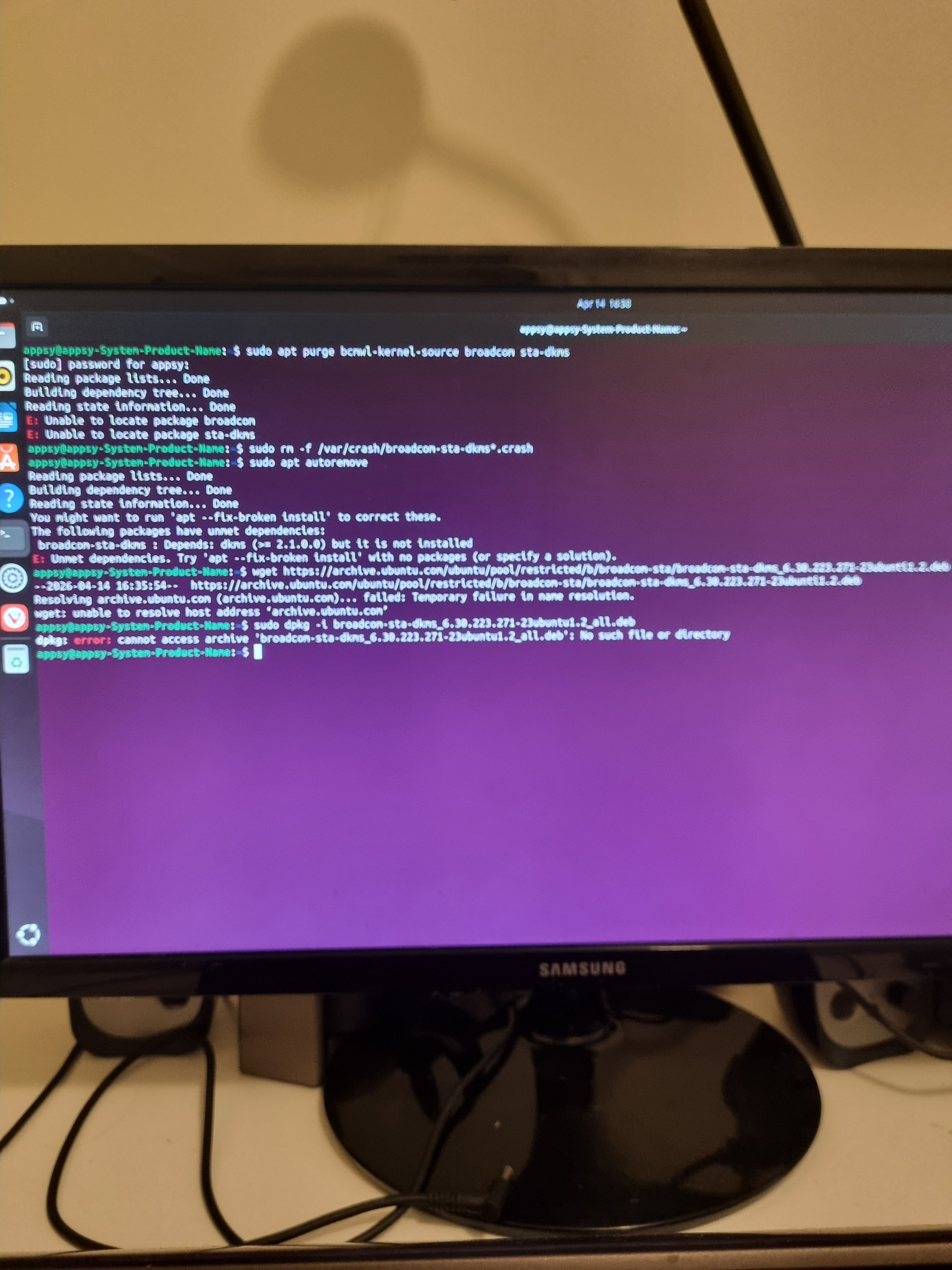
Run this command:
sudo apt --fix-broken install
And retry step 2 of the accepted solution. Make sure the output actually says successful download.