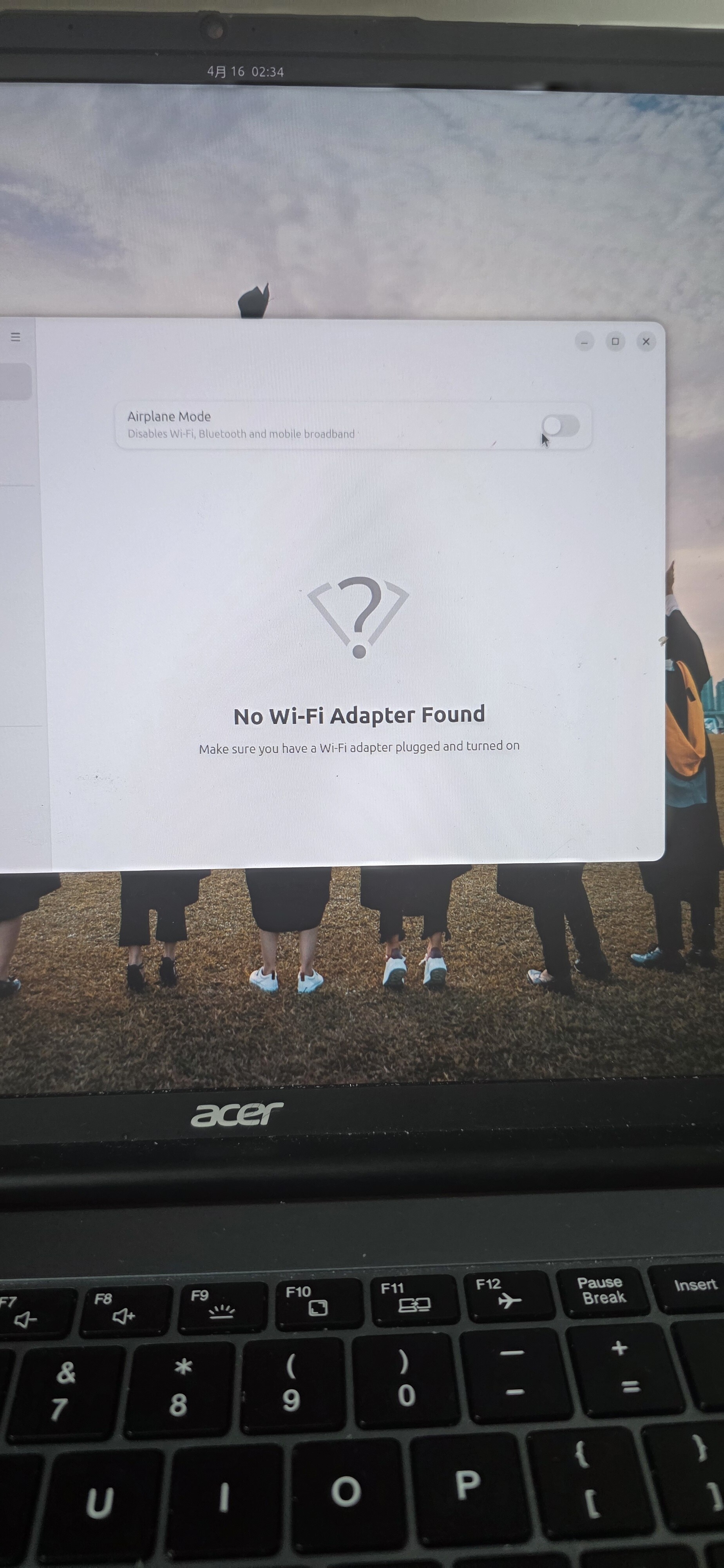
I recently installed Edubuntu on my Acer laptop  and erased all data of Windows 11. I have been unable to connect to the Wi-Fi
  since I installed it. The problem exists even though I have turned off the quick start and secure boot. Now I can only access the internet
  with wired connection. How can I solve this problem
My laptop 's structure is AMD64.
4 Likes
The version of Edubuntu is 26.04 LTS (Resolute Raccoon  )
)
2 Likes
Welcome to the community @Zreamer, good to have you here! 
3 Likes
model of the ACER laptop? we need to find the wifi chip it has and then find linux drivers for it. From a terminal, inxi -Nxx example: my pc shows wired device and wifi device
Network:
  Device-1: Realtek RTL8111/8168/8211/8411 PCI Express Gigabit Ethernet
    vendor: Dell RTL8111/8168/8411 driver: r8169 v: kernel pcie: speed: 2.5 GT/s
    lanes: 1 port: e000 bus-ID: 02:00.0 chip-ID: 10ec:8168
  Device-2: Realtek RTL8188EUS 802.11n Wireless Network Adapter
    driver: rtl8xxxu type: USB rev: 2.0 speed: 480 Mb/s lanes: 1 bus-ID: 1-10:22
    chip-ID: 0bda:8179
8 Likes
I don’t know how Edubuntu works. Never tried it. But isn’t Ubuntu asking for enabling repositories for specific drivers when installing? Maybe this is the same in Edubuntu?
3 Likes
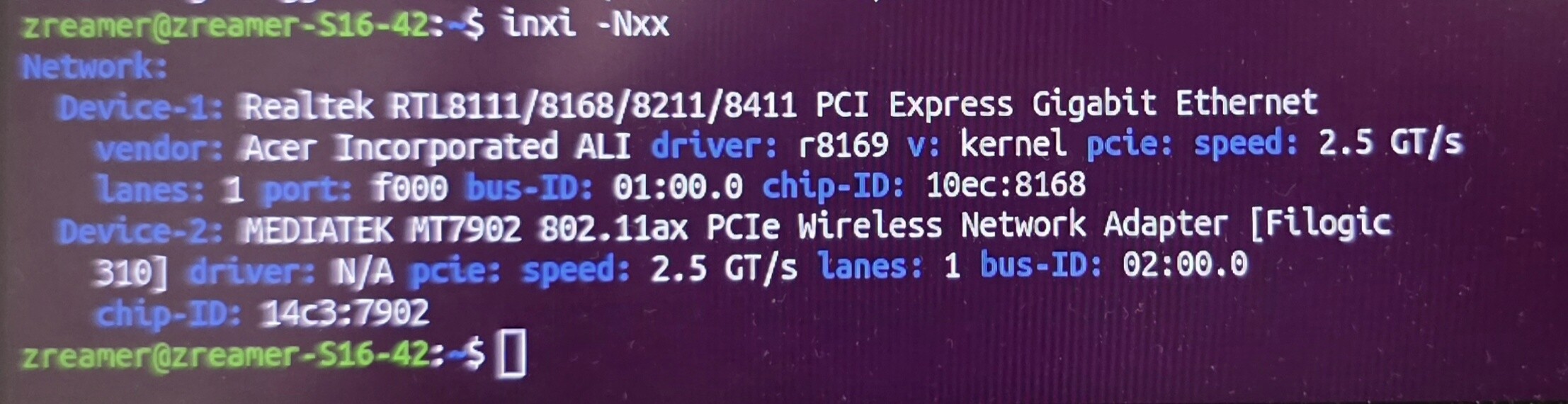
I’ve ran the command you give me. It do has a wifi chip in my computer
 . But no drivers. How can I do to complete the drivers.
1 Like
Edubuntu is a distribution of Ubuntu for education. More educational applications is the only difference between Ubuntu and Edubuntu.
2 Likes
This might help you:
5 Likes
@zreamer Found this link, https://forums.linuxmint.com/viewtopic.php?t=467205 a post by JeremyB, who is very knowledgeable about wifi on Linux. His suggestion:
sudo apt install git dkms
git clone https://github.com/hmtheboy154/mt7902
cd mt7902
sudo make install_fw
sudo dkms add .
sudo dkms install mt7902e/git
6 Likes
If you review postings in the old Ubuntu MATE Discourse site, you will soon determine that suggestions from Pavlos are solid.
Golden rule is always boot from Live Distro image, before installing, to confirm compatibility and availability of all necessary drivers and sofware.
Decision Point:
-
If all is good from Live Distro, proceed with install.
(Success may require additional packages to be installed, but working state at Live indicates all necessary is obtainable, just might not be installed.) -
If all is NOT good from Live Distro, do NOT proceed with install.
(Install will not succeed because the hardware database or compatible packages are not available, otherwise the Live Distro test run would have been successful.)
Post-Install Troubleshooting:
When you boot from the Live Distro image, not the installed Linux image, can you confirm using a browser that you have
- internet access (wired)?
- internet access (wireless)?
Need to know both states because it helps to pinpoint where the networking “connection” is broken.
If both states are available from Live Distro, boot to installed Linux and again verify using a browser that you have
- internet access (wired)?
- internet access (wireless)?
5 Likes