Hi People, just when I thought that I continue on enjoying Ubuntu, it throws a ‘curve ball’ at me! I leave my PC on permanently and overnight something weird has happened. I first noticed that the desktop picture was missing and then Vivaldi refused to open. I had a number of mounted network drives and they disappeared. I tried rebooting but the UEFI boot menu offers what appears to be Four versions of the SSD to boot from (confusing!) so I tried each one alternatively. No luck. Even weirder still is that when I attempt to boot, the machine starts part of the install procedure again. Anyway, I continue on and nothing changes. Any ideas please?
That sounds like filesystem corruption on your SSD. Something happened overnight, maybe a power blip you didn’t notice, and it’s messed up your root partition. That would explain all of it, the missing wallpaper, Vivaldi not opening, network drives gone, and the installer trying to kick in on boot.
I’d boot from a live USB and run sudo smartctl -a to check the drive health.
You might need to sudo apt install smartmontools first. If your files are still accessible from the live session, back them up to an external drive before doing anything else.
If SMART is showing errors, the drive might be dying and worth replacing.
If the drive checks out okay, a fresh reinstall is probably still your fastest fix. All your files should be in /home. I know it sucks but last resort if it does not magically start working.
The multiple UEFI entries are usually old boot entries that pile up over time, shoulkdnt be an issue.
2 Likes
Okay, I installed smartmontools but the machine does not recognise the command sudo smartcl -a
1 Like
You have to add the path to your drive. I included a link to the instructions. For example, sudo smartctl -a /dev/sda or /dev/nvme0n1 etc. Use fdisk -l to see the names of your partitions.
2 Likes
I ran fdisk -l and permission was denied
1 Like
Did you remember to use sudo? If not, do sudo !! to run the last command with administrative permissions.
Sidenote: FDisk requires administrative permission to be used, as it deals with partition tables on a block device.
2 Likes
I would recommed following troubleshooting steps:
- Turn it off and unplug any USB drives/install media immediately.
2)Rescue Mode: Boot up, and when the Grub menu appears (or mash Shift/Esc to show it), select “Advanced Options for Ubuntu”. Choose the highest kernel version that doesn’t say “recovery mode” first.
3)If that fails, use Live USB: Create an Ubuntu Live USB on another computer. Boot from it, select “Try Ubuntu”.
4)Repair Filesystem: Open Terminal in Live USB and run:
sudo fdisk -l (Identify your SSD, e.g., /dev/nvme0n1p2 or /dev/sda2).
sudo fsck -y /dev/sdXy (Replace sdXy with your actual partition).
5)Check UEFI: Go into your BIOS/UEFI settings and ensure the Ubuntu Boot Manager is set as the #1 boot option, not a generic “UEFI SSD” entry.
Hopefully, this should solve the issue..!
1 Like
Method #2 wasn’t successful. Before I attempt method #3, will I have to use a wired connection, Also, when I first installed Ubuntu, I lost the use of my my wifi adaptor which took a long time and a lot of effort to re-establish it. Is that likely to happen again?
1 Like
Out of curiosity, is this an external SSD you’re booting from, or is it an internal drive connected through some kind of adapter?
How kts connected seems to be blocking smartctl.
If you can still access your files, I’d back everything up now!
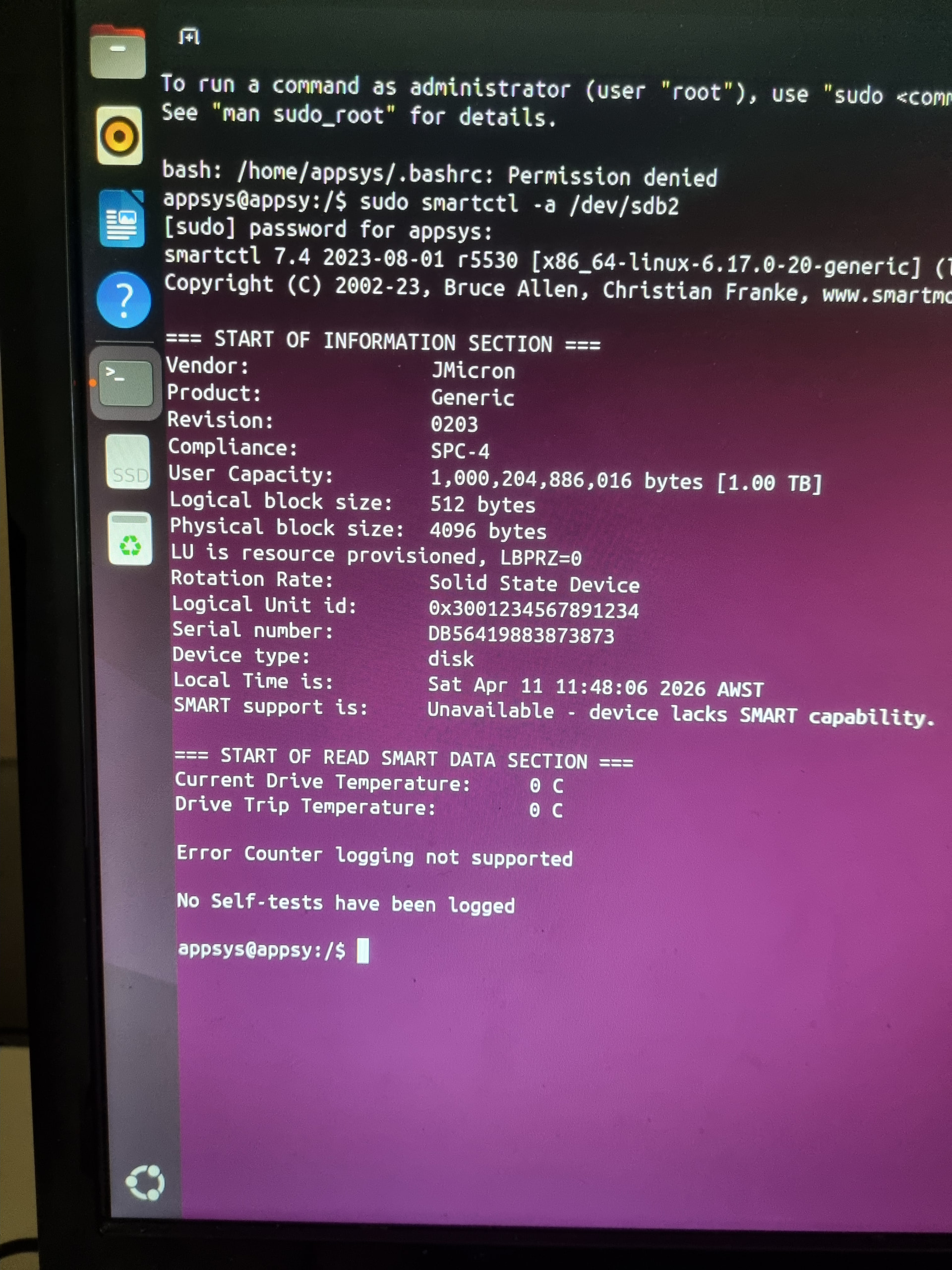
In the screenshot that JMicron Generic result means smartctl is seeing your USB-to-SATA bridge chip, not the actual SSD behind it. That’s why SMART shows as unavailable and the temps are 0C.
The adapter or something is blocking the health data from getting through.
Backup your personal files in the home for if you haven’t already.
Also yes a clean reinstalll would mean you have to reinstalled drivers and apply the previous fix again. You may be able to find how you fixed WiFi by typing history and looking at the related commands there.
1 Like
Its booting from an internal drive and any files are stored on an external ssd and other network drives.
Best regards,
David
2 Likes
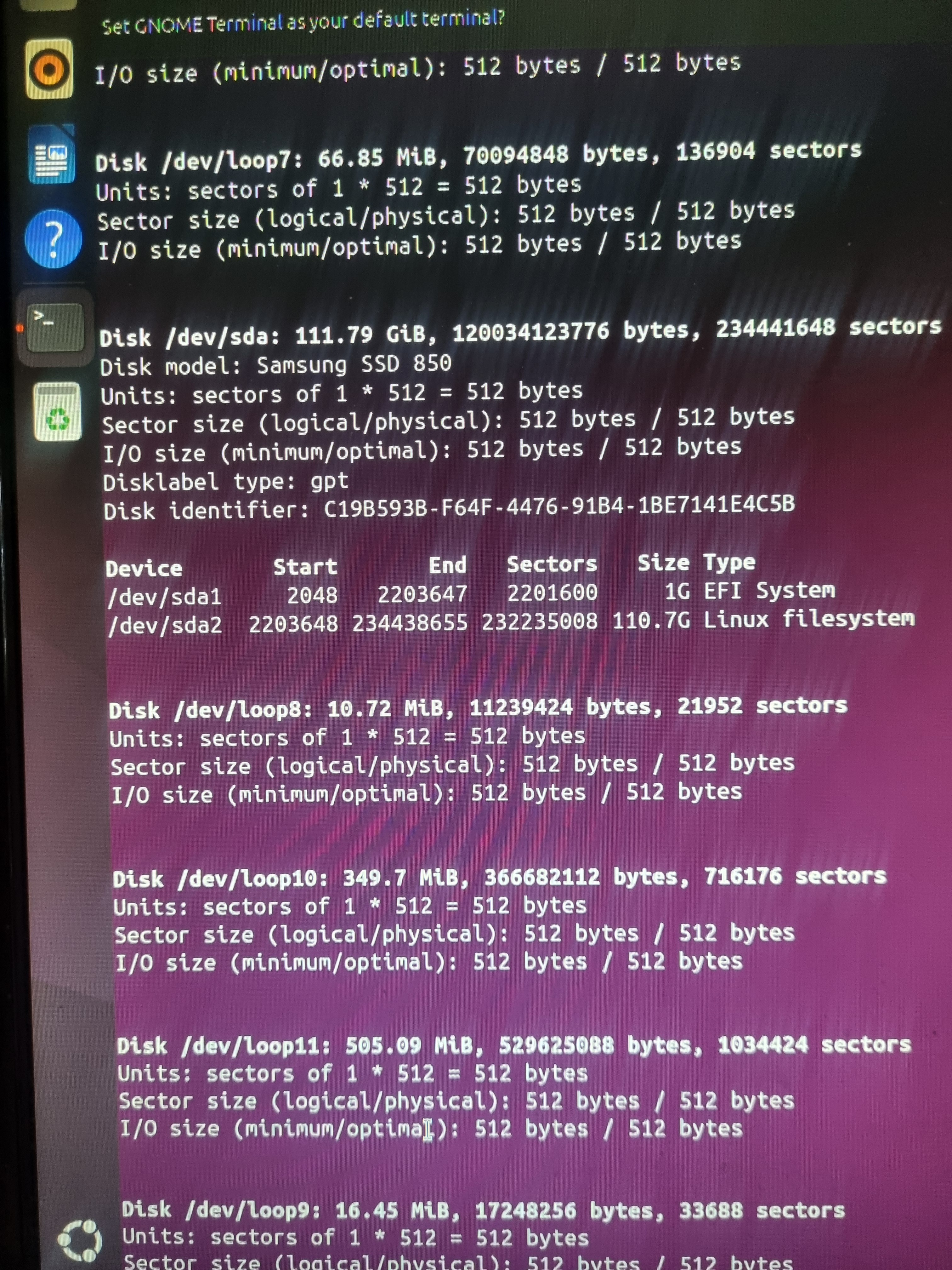
Can you show us the result of sudo fdisk -l
1 Like
2 Likes
Your actual drive is the Samsung SSD 850 at /dev/sda. That JMicron device you ran smartctl on earlier was something external plugged in via USB, not your boot drive.
Try sudo smartctl -a /dev/sda and that should give you the real SMART data for your Samsung. That’ll tell us if the drive is healthy or on its way out.
2 Likes
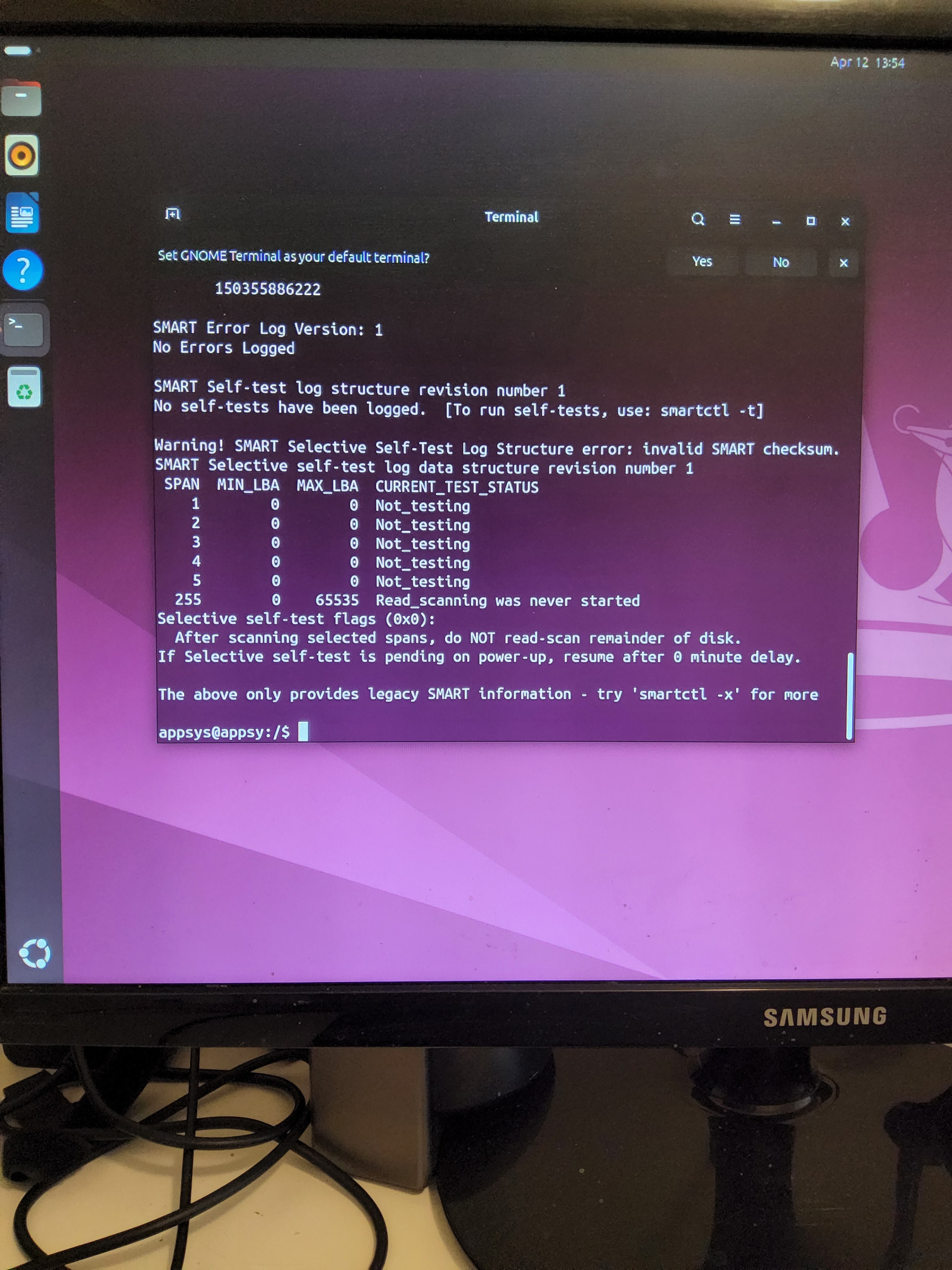
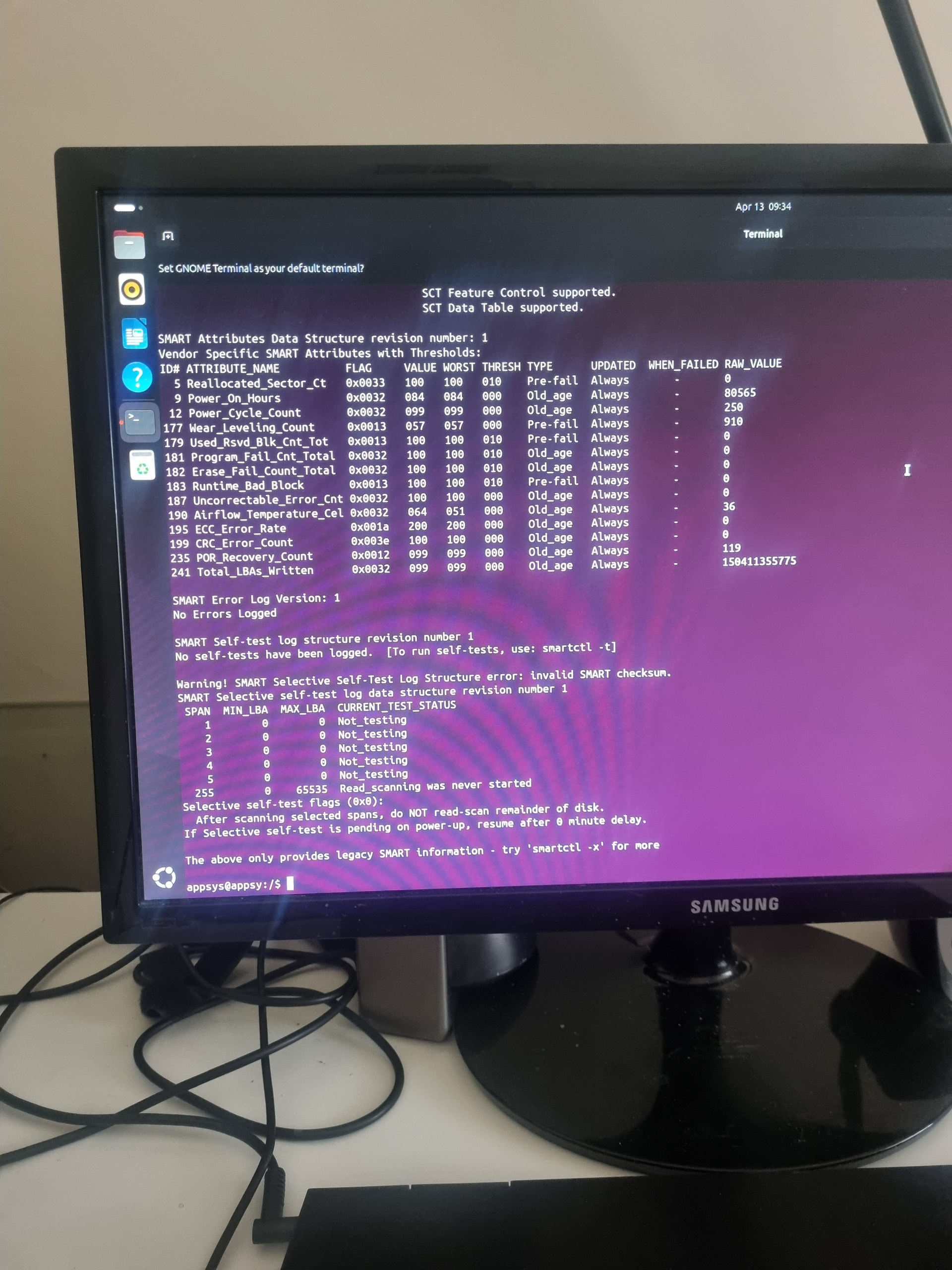
I ran the smartctl -H test and the verdict was that the SSD is in good health. I guess that is good news but, it doesn’t address the main problem
2 Likes
I just ran a command to determine if the machine was booting from UEFI or Legacy. It could not access the directory to get an answer for UEFI and that, according to online sorces, suggests that I am on Legacy. However, when go into the BIOS it shows that drive/s are tagged “UEFI”
2 Likes
That’s the tail end of the output, the good stuff is at the top.
Can you scroll up or run sudo smartctl -a /dev/sda | less so you can scroll through it?
hm, or even sudo smartctl -a /dev/sda > ~/smart_result.txt and then paste the contents of that file.
Looking for the overall health status especially things like Reallocated_Sector_Ct, Wear_Leveling_Count, and Power_On_Hours.
You can see an example of the output pasted in this forum thread on Arch forums:
Edit:
Giving this some more thought. Could you have forgotten to install the media plugged in?
If a USB installer stick still plugged in and the UEFI boot order picks it up, that would explain the “four versions of the SSD” in the boot menu and the installer kicking in on reboot.
Does not explain all issues, but just thought I would mention in case.
2 Likes