This guide explains what groups are, how to join and leave them, how flairs work, and how to manage your settings.
What is a group?
A group is a collection of members with a shared focus. On LinuxCommunity.io, groups are used for distro and desktop environment communities like @MATE, @Fedora, as well as other interests and roles.
Being in a group gives you access to:
- A shared space and group messaging
- A flair, a small icon shown next to your avatar
- Access to certain categories or features (depending on the group)
How to find and join a group
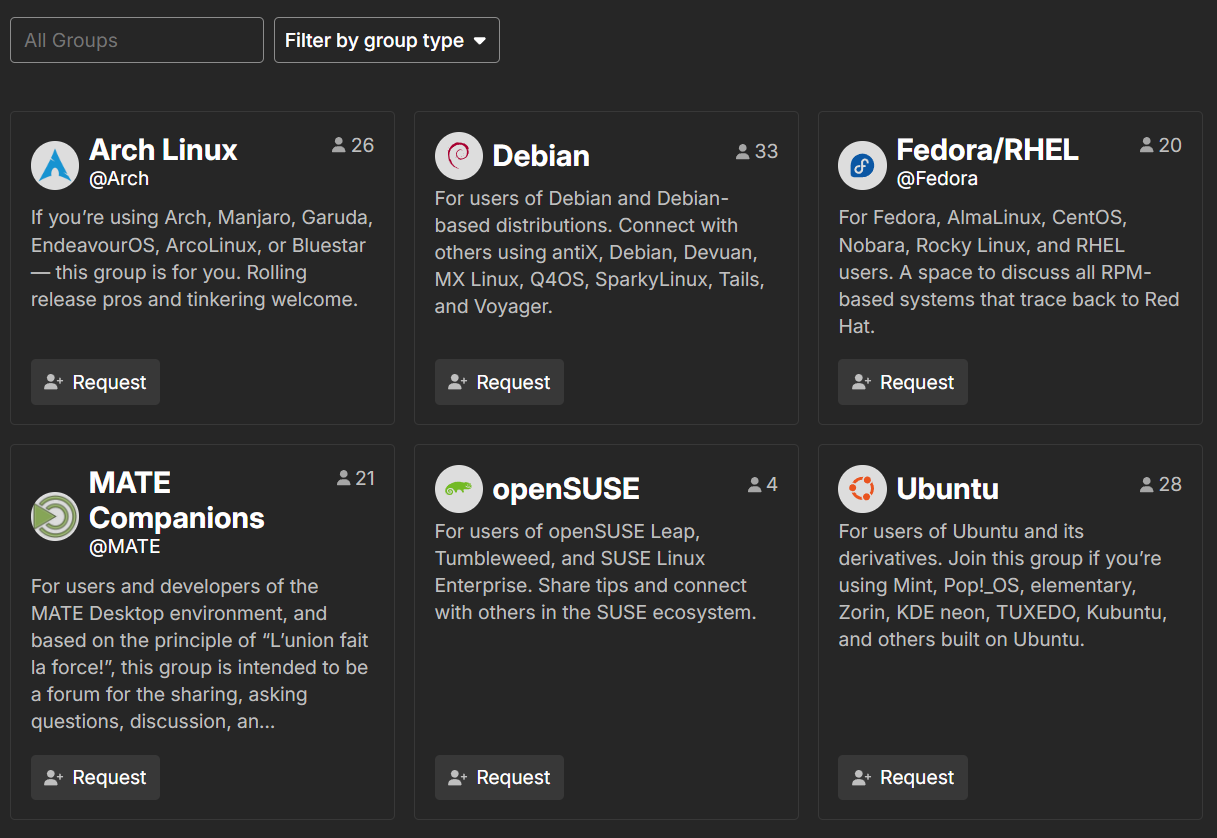
- From our forum sidebar menu, select GROUPS, or visit:
linuxcommunity.io/g

- Browse the list and open a group that interests you.
- Click Request to join.
Group membership requires approval. Your request is sent to forum @staff (administrators and moderators) and the group owners. Once approved, you will be added to the group.
You can join as many groups as you like!
How to leave a group
Open the group page and click Leave. You can rejoin later by submitting a new request.
Flairs explained

A flair is a small badge shown on your avatar across the site, indicating group affiliation.
You control your flair entirely. Automatic assignment based on a group’s “primary” setting has been disabled to prevent unwanted overrides.
This is especially important if you belong to multiple groups, since automatic behavior previously replaced your flair based on the most recently joined group.
Now you can choose which flair to display, or disable it entirely.
Tip: Hover over the flair icon to see the group name.
How to set your flair
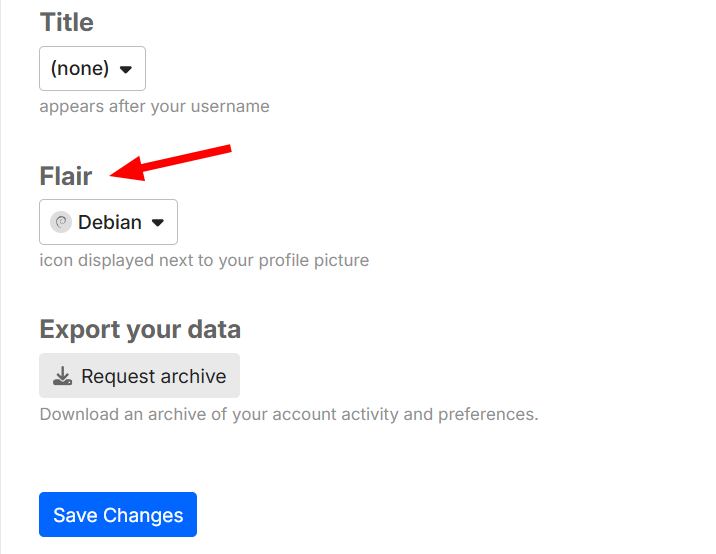
- Go to Preferences → Account
- Scroll down to the Flair setting
- Select a flair from your groups or leave it set to none
- Save changes
Your selection will persist and will not be overridden when joining new groups.
Group messages and notifications
- Some groups can be messaged as a whole for announcements or coordination.
- Notification levels can be adjusted per group by opening the group page → Notifications, then selecting Watching, Tracking, Normal, or Muted.
Quick reference
| Action | Where |
|---|---|
| Find or join a group | Sidebar → GROUPS |
| Leave a group | Group page → Leave |
| Set or remove flair | Preferences → Account |
| Change notifications | Preferences → Notifications |