Like the title says, it won’t connect via Virt-Manager or launch any VM’s from Virtual Manager. it tells me the connection isn’t active. so how would I activate it? This used to work.
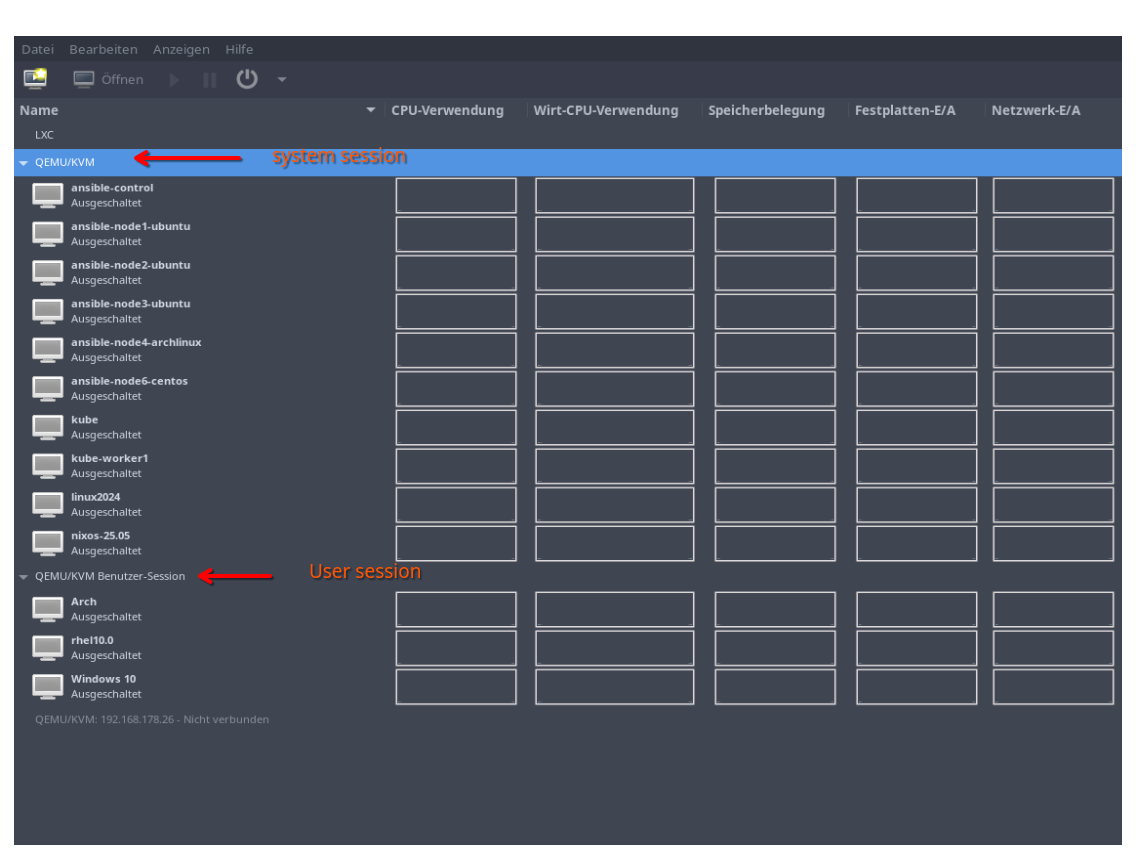
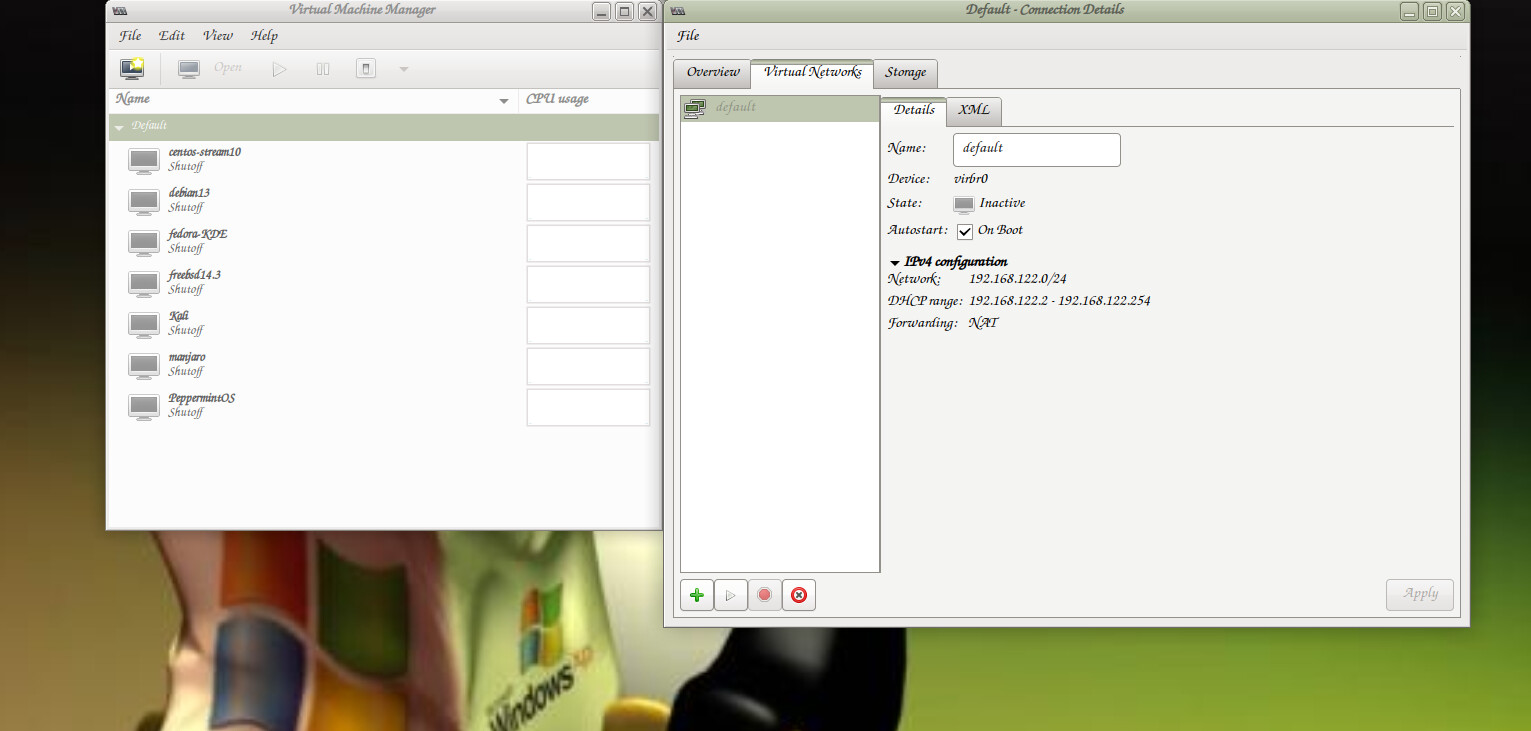
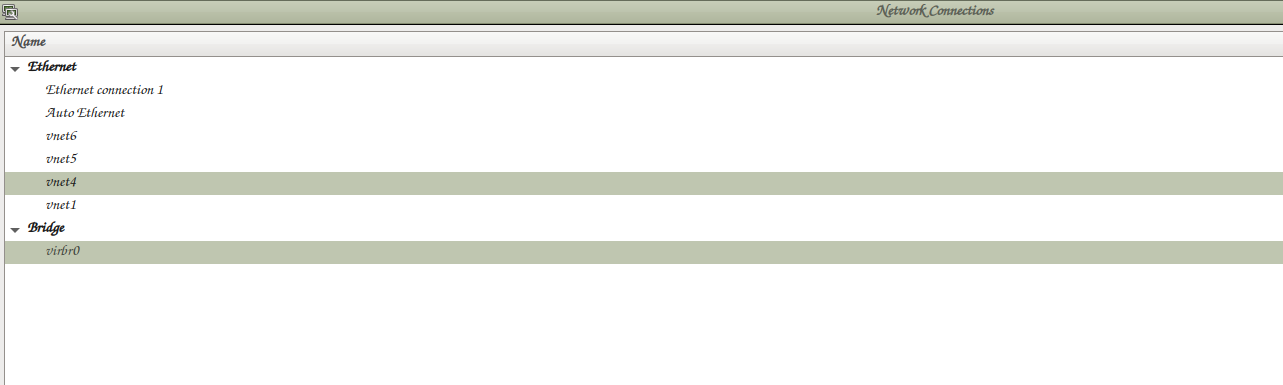
Ah now I see, you mean the network connection right?
Can we start over?
What do you want to do? Du you want to connect via ssh to the VMs?
I want to be able to run the currently installed VMs. It claims the default connection isn’t active and throws a stack trace error:
Error starting domain: Requested operation is not valid: network ‘default’ is not active
Traceback (most recent call last):
File “/usr/share/virt-manager/virtManager/asyncjob.py”, line 67, in cb_wrapper
callback(asyncjob, *args, **kwargs)
~~~~~~~~^^^^^^^^^^^^^^^^^^^^^^^^^^^
File “/usr/share/virt-manager/virtManager/asyncjob.py”, line 101, in tmpcb
callback(*args, **kwargs)
~~~~~~~~^^^^^^^^^^^^^^^^^
File “/usr/share/virt-manager/virtManager/object/libvirtobject.py”, line 57, in newfn
ret = fn(self, *args, **kwargs)
File “/usr/share/virt-manager/virtManager/object/domain.py”, line 1446, in startup
self._backend.create()
~~~~~~~~~~~~~~~~~~~~^^
File “/usr/lib/python3/dist-packages/libvirt.py”, line 1390, in create
raise libvirtError(‘virDomainCreate() failed’)
libvirt.libvirtError: Requested operation is not valid: network ‘default’ is not active
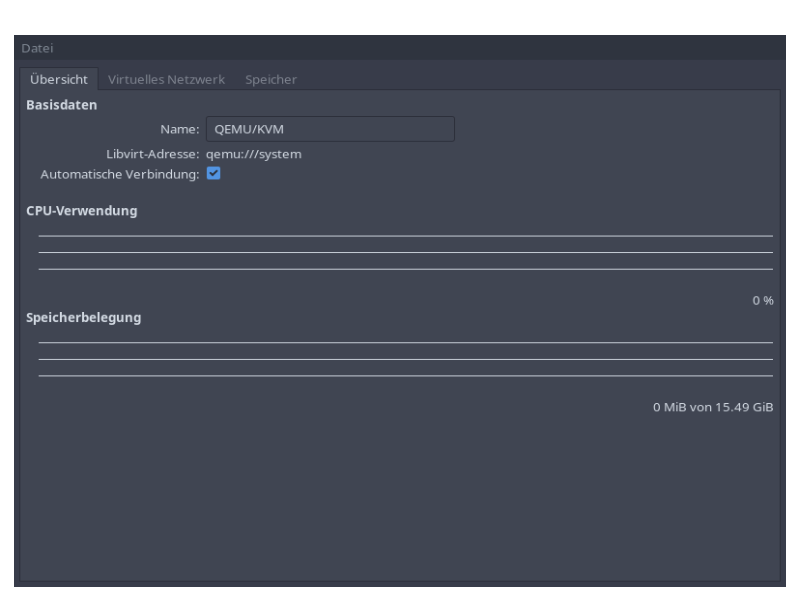
Yes It used to work, it just quit working after an update and I can’t get the dumb thing to activate for any of the shown VMs in Virt-manager.
The address shows as:
virbr0: <NO-CARRIER,BROADCAST,MULTICAST,UP> mtu 1500 qdisc noqueue state DOWN group default qlen 1000
link/ether 9e:03:76:da:23:d3 brd ff:ff:ff:ff:ff:ff
inet 192.168.122.1/24 brd 192.168.122.255 scope global noprefixroute virbr0
valid_lft forever preferred_lft forever
8: vnet2: <NO-CARRIER,BROADCAST,MULTICAST,UP> mtu 1500 qdisc fq_codel master virbr0 state DOWN group default qlen 1000
link/ether 0e:8f:90:15:e3:cd brd ff:ff:ff:ff:ff:ff
9: vnet0: <NO-CARRIER,BROADCAST,MULTICAST,UP> mtu 1500 qdisc fq_codel master virbr0 state DOWN group default qlen 1000
link/ether 1a:fb:69:6f:9b:dd brd ff:ff:ff:ff:ff:ff
10: vnet3: <NO-CARRIER,BROADCAST,MULTICAST,UP> mtu 1500 qdisc fq_codel master virbr0 state DOWN group default qlen 1000
link/ether d6:2b:c5:29:6b:1b brd ff:ff:ff:ff:ff:ff
This might help you: https://linuxconfig.org/how-to-use-bridged-networking-with-libvirt-and-kvm
Well it appears I lost the “master” connection somehow. I can’t get virbr0 or default to be active @ the same time. I guess it’s off to bugzilla 
Well it almost got me there, we’ll see how well Bugzilla works for this. Stupid connect still won’t activate

And now I’m using Windows to reply to this. I’ll verify I didn’t type something wrong I guess.
okay after a re-install of my OS I fixed it.  I still have no idea what broke in the first place so I’m slowly re-adding my Virtual Machines. And working on my backups so they’re better organized.
Nice to hear that it works again. But re-install is heavy…
yes it’s like killing flies with a nuke, but, the more I tried to fix it the more broke it became.
I agree with @toadie .
It is widely documented that QEMU networking can be problematic. I disable NetworkManager, install “bridge-utils” (Linux kernel bridge), and basically ignore QEMU networking.
Linux kernel bridge works great with virtio networking.