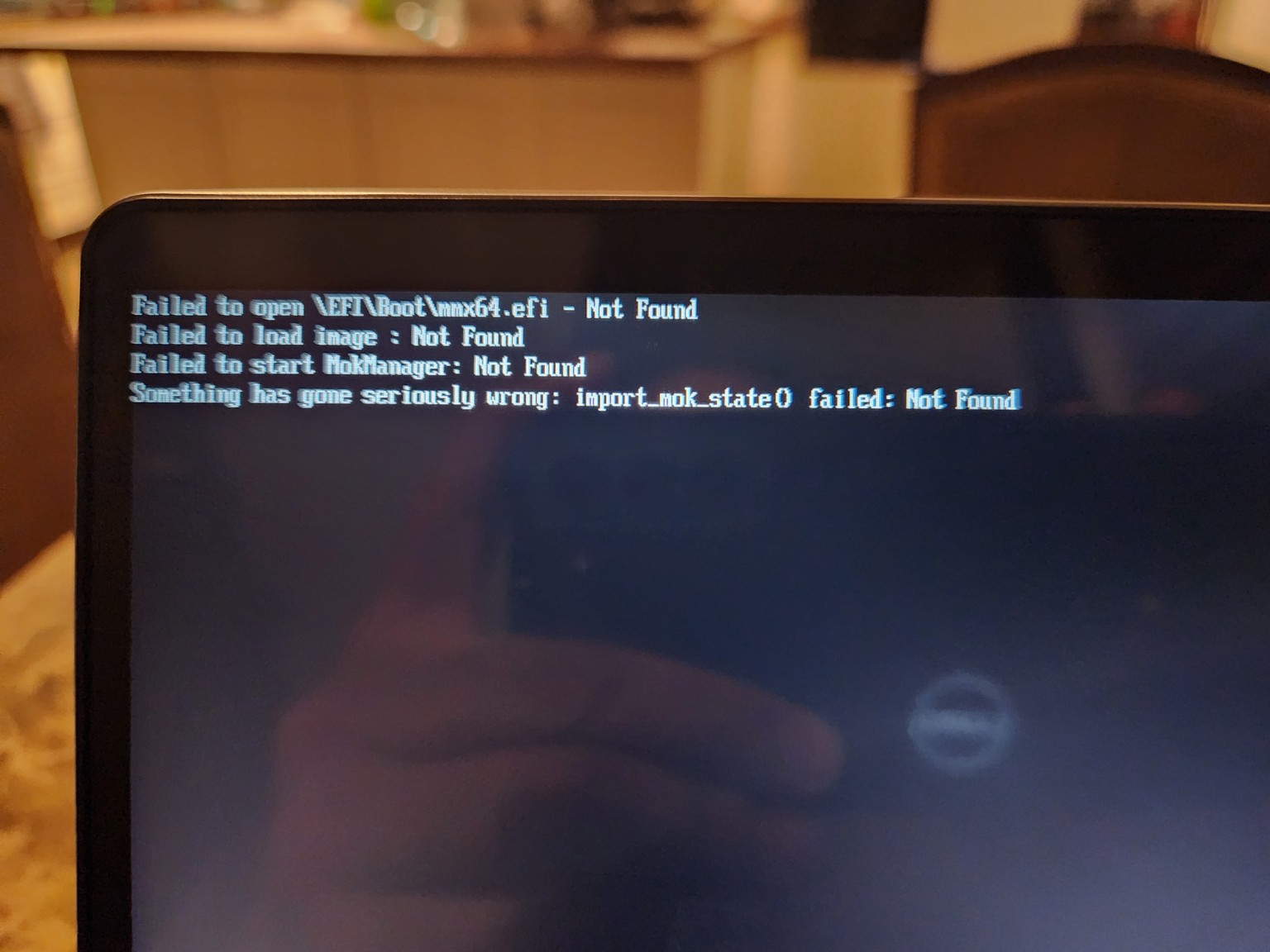
Ok so here’s the story. When I was in the midst of playing with Linux Mint on the USB drive I have, the system was working fine. But, when the system told me to “remove the medium before restarting,” I assumed that it meant to remove the USB drive and then restart. So, I did that, went back to the directions to make sure I do this install correctly on Windows, and attempted to boot the same iso from the USB so that I can do the full install and partition on my hard drive. However, what happened is that the message (attached as picture) kept showing up. I tried many different methods to try and fix the issue. Mainly rewriting this USB again and again, turn off Secure Boot, BitLocker is already off, and changed the boot order. But this message still shows up and I’m out of options.
Has anyone made the same mistake before? If so, what was your solution aside from buying a new thumb drive? Because, that’s what I’m getting ready to do next.
I solved it. It was missing the actual mmx64.efi file for whatever reason. I copied the grubx64.efi file and renamed it mmx64.efi file. Still keeping the original grubx64.efi file. It booted, but now I’m at the BitLocker issue. Which, I swore I already disabled that. Secure Boot is already disabled.
That usually happens when the USB was written incorrectly or the boot files got corrupted.
…I was in the middle of replying, so will leave that here for anyone else in the future who stumbles on this thread.
Nice work!
Edit: If BitLocker wasn’t fully disabled before the Linux install, Windows may have locked the drive again or left the partition encrypted.
Boot into Windows (or the recovery environment) and make sure BitLocker is actually turned off for all partitions, not just C:. Sometimes there’s a recovery partition that’s still locked.
In Windows Run manage-bde -status in an elevated Command Prompt (Run as Administrator). to confirm the encryption state. If it’s still on, disable it fully and let it finish decrypting before booting back into the installer.
If Windows won’t boot normally, you may need to unlock the drive using the recovery key, then disable it from there.
Once BitLocker is completely off, the Linux installer should be able to detect and partition the disk without throwing errors.
Yup I got that solved! I went into the settings and forgot that I reenabled it. Now I have LM. And, holy smokes this thing is fast! Where in the world have I been? Just got my fingerprint enabled! I’m liking this so far. Time to go further into this rabbit hole.